
For organizers
Run the door on game day
By Tim Sullivan Updated
Game day is here. People are filing into The Crimson Tavern, and you need to know who's actually in the room before you start dealing tokens.
The door view is built for exactly this moment. One screen, big tap targets, a live count. Pull it up on your phone, prop it by the entrance, and check people off as they arrive.
Here's how to run it.
Open the door view
From your event's organizer page for Crimson Tavern Friday, open the door view. It loads a stripped-down screen made for standing at an entrance with a phone in one hand.
You can run the door. So can any Storyteller you added to the event. Both get full check-in access. Anyone else who lands on the link gets bounced back to their dashboard.
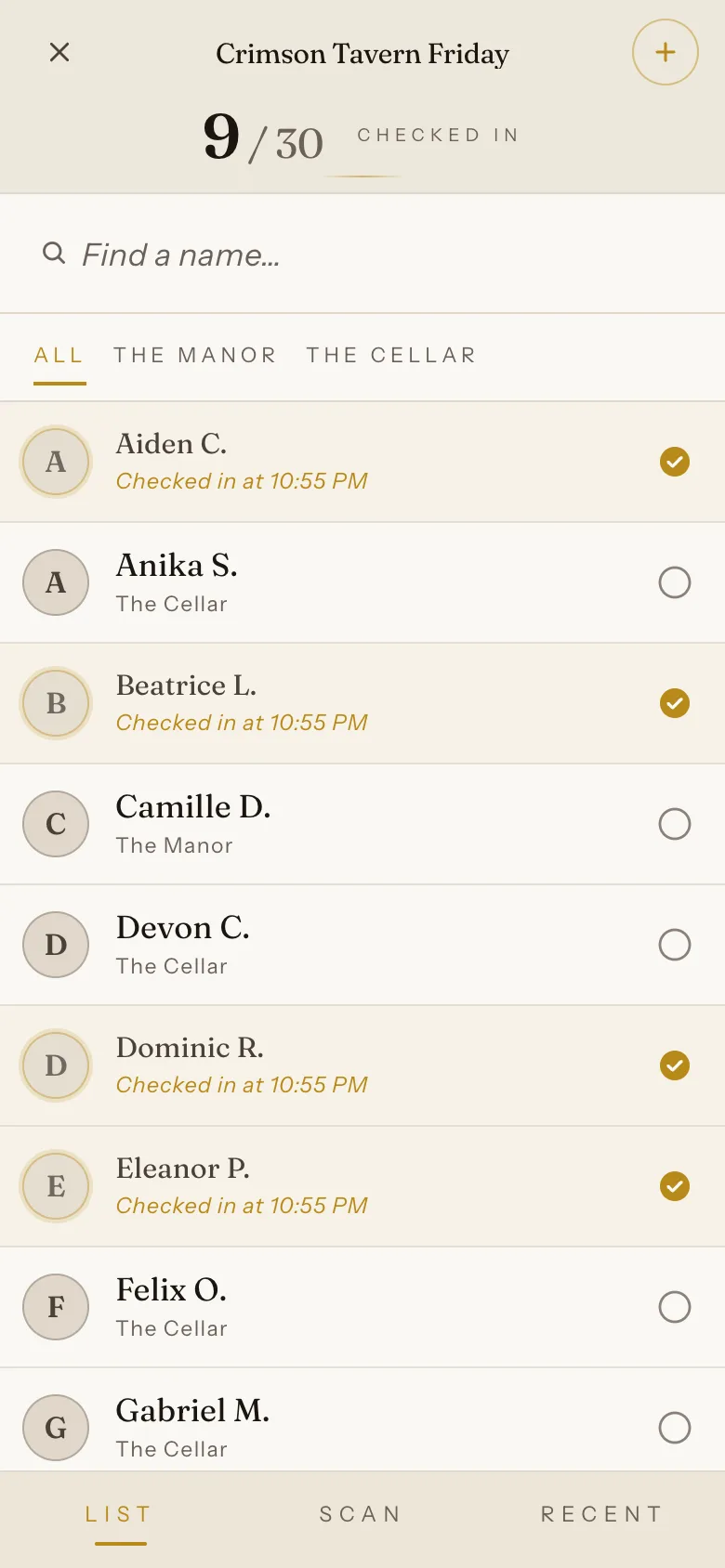
Check people in with a tap
Tap anyone's row to check them in. The empty circle on the right fills with a gold check, and a "Checked in at 7:14 PM" line appears under their name.
The counter at the top tracks it live. With both rooms full at Crimson Tavern that's 30 seated players, so you're watching it climb toward "30 / 30 checked in" as the room fills.
No save button, no confirmation step. Tap and move on to the next person at the door.
Find a name fast
When the line backs up, don't scroll. Type into the "Find a name" search at the top and the list narrows as you go.
If you're running both rooms side by side, the room tabs sit just under the search. ALL shows everyone; tap "The Manor" or "The Cellar" to see just that table's players. (Single-room events skip the tabs entirely, since there's only one table to fill.)
Scan a ticket instead
Tap SCAN in the footer to switch to the camera. Point it at the QR code on a player's ticket and Slaydate checks them in on the spot.
It's reading the ticket, so it knows exactly who they are. If the code is for a different event, or that person is on the waitlist rather than seated, you get a full-screen red rejection you can read from across the room. No guessing whether the scan worked.
Add a walk-in
Someone shows up who never signed up. It happens. Tap the + button in the top corner to add them.
Give a name and an email (and pick a room, if you're running more than one). Hit "Add and check in" and they're seated and checked in in one move. Their row gets a small "walk-in" tag so you can tell them apart later.
Undo a mistake
Tapped the wrong person? Tap their row again. Slaydate asks you to confirm, then clears the check-in: the gold check goes back to an empty circle and the counter ticks down.
The RECENT tab in the footer shows your latest check-ins, which is handy for catching a fat-finger before it matters.
That's the whole job. Open the door, tap people in, scan the stragglers, and add walk-ins as they wander up.
Watch the counter. When it reads 30 / 30 at Crimson Tavern, both Storytellers know every seat is filled and they can call the first night.