
For organizers
Create and configure an event
By Tim Sullivan Updated
An event in Slaydate is one session of Blood on the Clocktower. You name it, set when and where, then open it up for signups. Creating one takes about a minute. Configuring it the way you actually want takes a few more.
This walks you through both: the new-event form, then the settings you'll tune from the management hub afterward. We'll use Crimson Tavern Friday as the running example. A Friday night at The Crimson Tavern in Ottawa, two rooms going at once, run by Marguerite Vale.
Start a new event
From your dashboard, hit Create Event. You land on a single form that holds everything: a cover image, the title, the date and time, the location, and a description.
Nothing here is permanent. You can edit all of it later. The goal right now is just to get the bones in place.
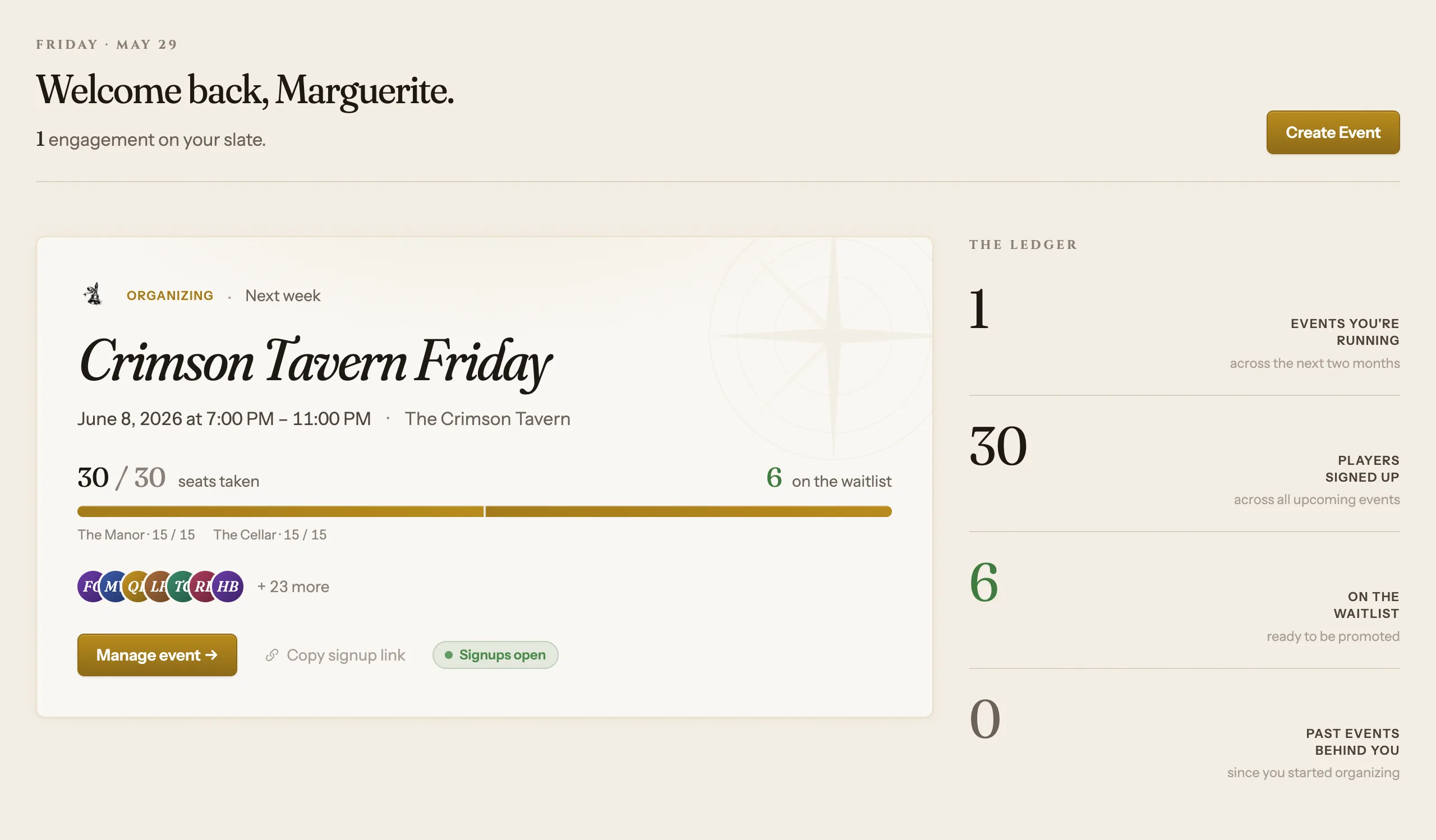
Name it, then set the date and time
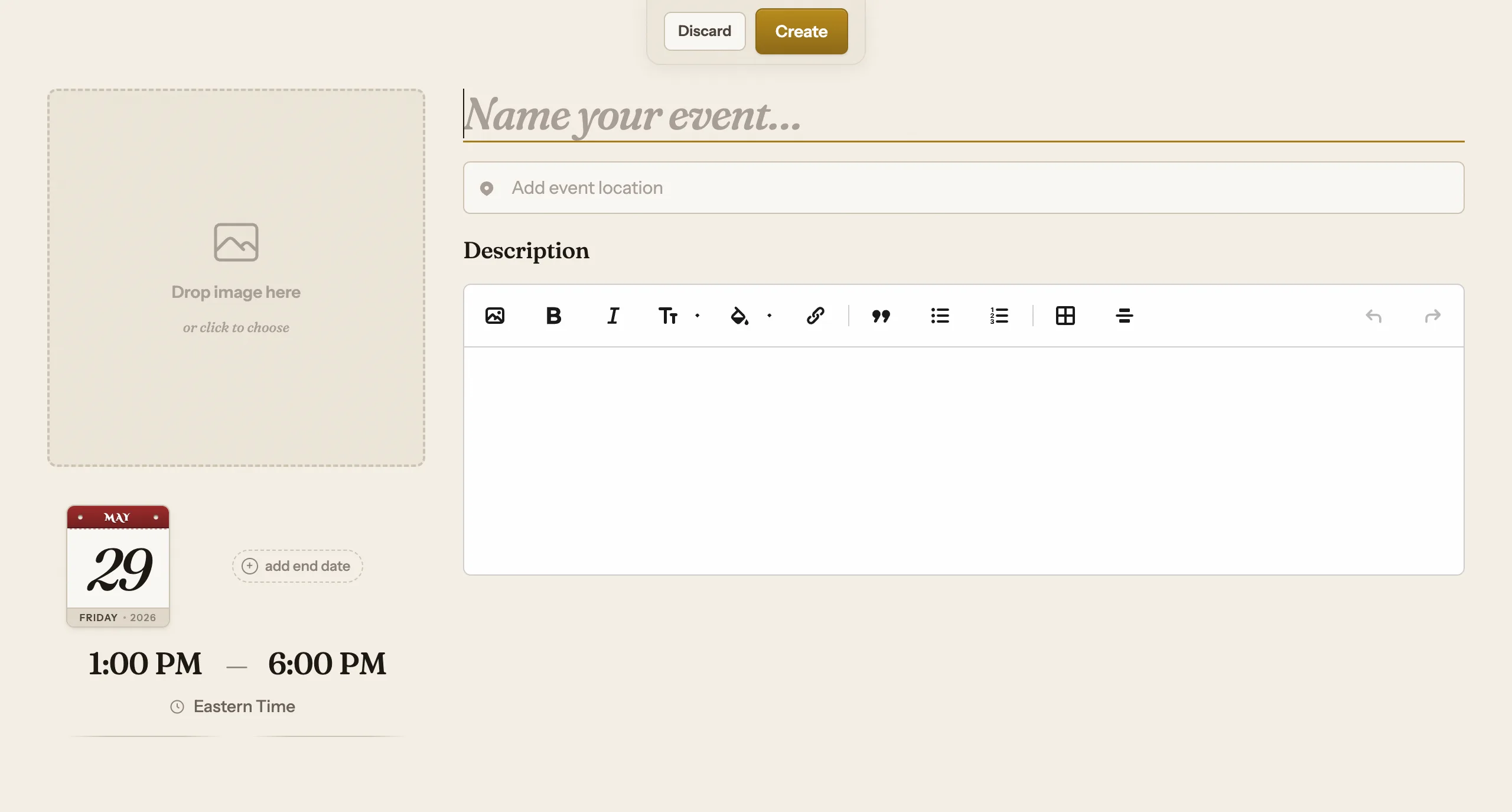
Click into the big "Name your event..." field and type the title. For our example, that's Crimson Tavern Friday.
The date tile and time row sit in the left column. Pick the start date, then set the start and end times (7:00 PM to 11:00 PM for the Tavern). The timezone defaults to Eastern, and you can change it right below the times. If your event runs past midnight or spans two days, click "add end date" to reveal a second date tile.
Add the location and a description
Type into "Add event location" and pick the place from the search results (The Crimson Tavern, Ottawa). One thing worth knowing: players only see the exact street address after they register. Before that, they see the place name and city, not the door. There's also a "+ Add further instructions" line for parking, apartment numbers, or which entrance to use.
Write a description in the rich-text editor below. An optional cover image goes in the drop zone up top: drag one in, click to upload, or pick a sample. When it's all in, hit Create. (Discard is right beside it if you change your mind.)
Add a second room (or don't)
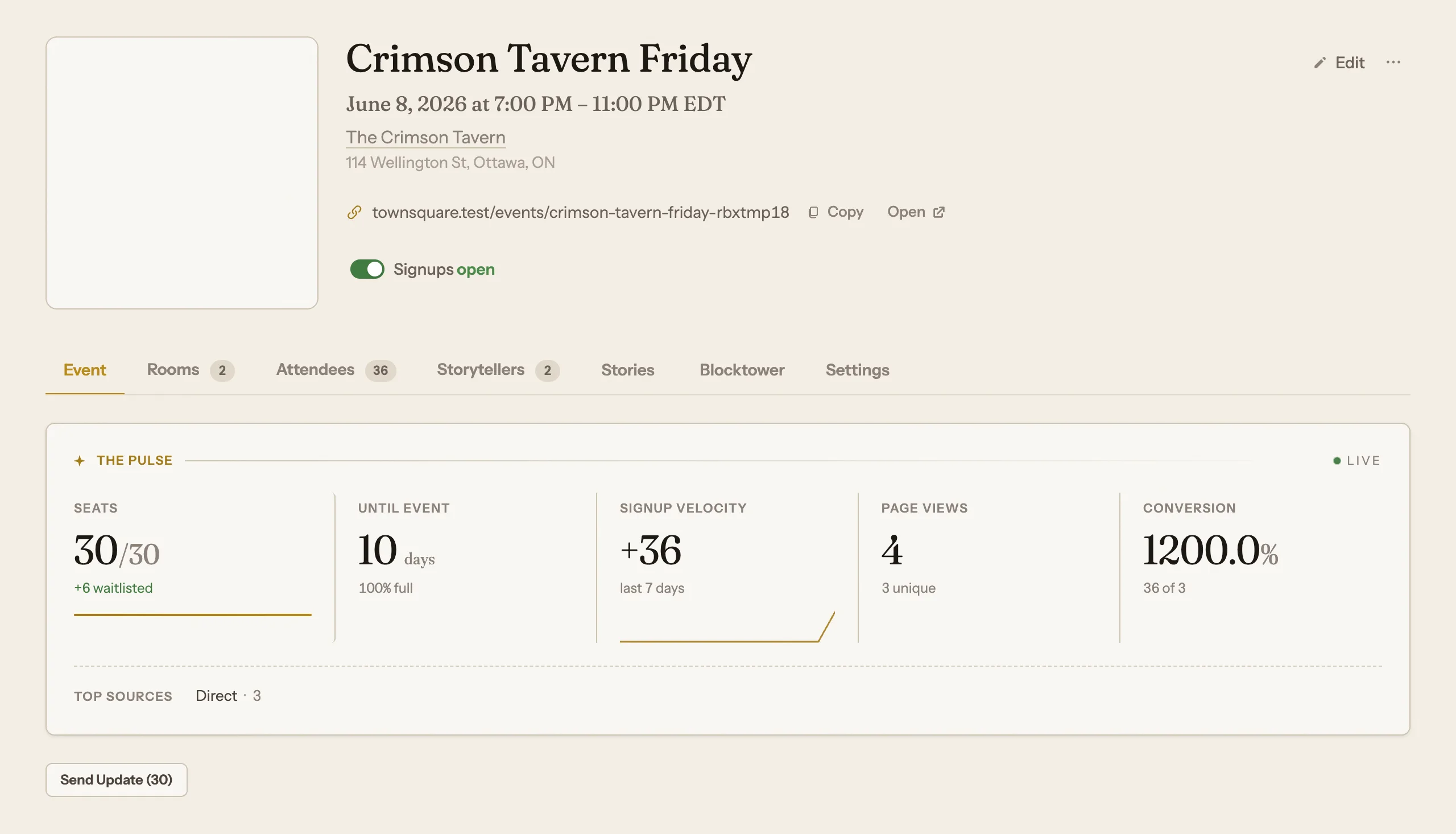
Creating the event drops you into the management hub on the Settings tab. Every new event starts with one room that seats 15. A room is one table: one simultaneous game with one Storyteller.
If you're running more than one table, open the Rooms tab and add another. Crimson Tavern Friday runs two: The Manor (Trouble Brewing, good for newer players) and The Cellar (Sects & Violets, a bit more advanced), each seating up to 15. Rooms cap at 20 seats each.
If your event has exactly one room, players never see any room UI at all. No room names, no picking a table. Add a second room and that all switches on for them.
Pick a signup mode
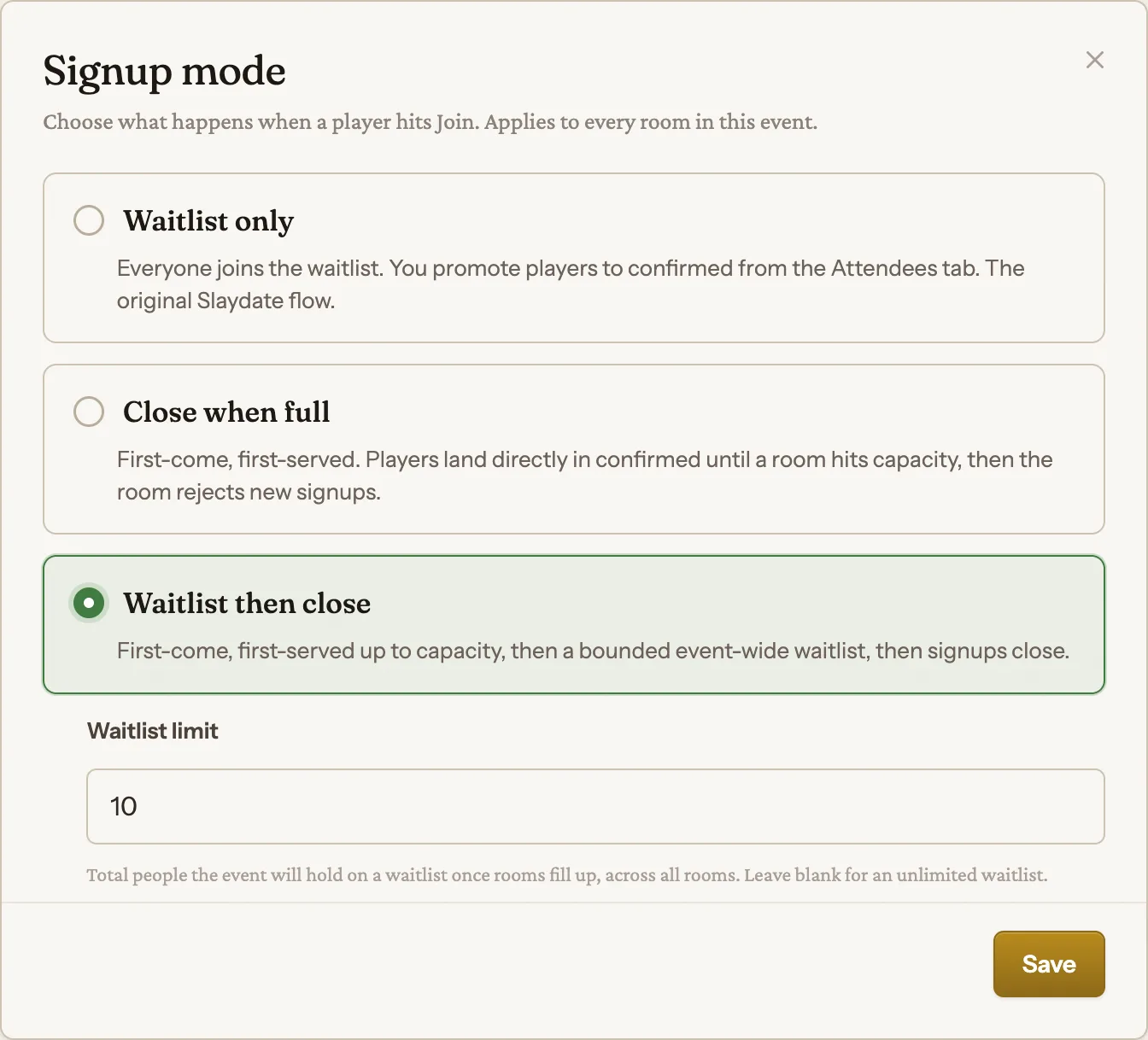
On the Settings tab, open the Signup mode chooser. This decides what happens the moment a player hits Join, and it applies to every room.
There are three options: Waitlist only, where everyone lands on the waitlist and you promote people to confirmed yourself from the Attendees tab. Close when full is first come, first served, players go straight to confirmed until a room hits capacity, then it stops taking signups. Waitlist then close is first come, first served up to capacity, then an event-wide waitlist, then signups close.
That last mode is the only one with a Waitlist limit field. It's the total number of people held across all rooms once the seats fill. Leave it blank for an unlimited waitlist. Hit Save.
Set the toggles, then open signups
The rest of the Settings tab is a row of switches. Ask for pronouns at signup. Require a code of conduct (you write the text, and saving text turns it on). Show or hide the attendee count and the attendee list on the public page. List the event publicly so it shows up in city listings.
When the page is ready, flip Signups open. That's the master switch: off, and the public page shows a closed state no matter what mode you picked. Copy the shareable signup link from the top of the hub and send it out.
That's the whole arc: fill the form, hit Create, then tune rooms, signup mode, and toggles from the hub. None of it is locked in, so start rough and refine.
Remember: the exact address stays hidden until a player registers, and single-room events hide all room UI from players entirely. Both are working as intended.