
For players
Get your ticket and wallet pass
By Tim Sullivan Updated
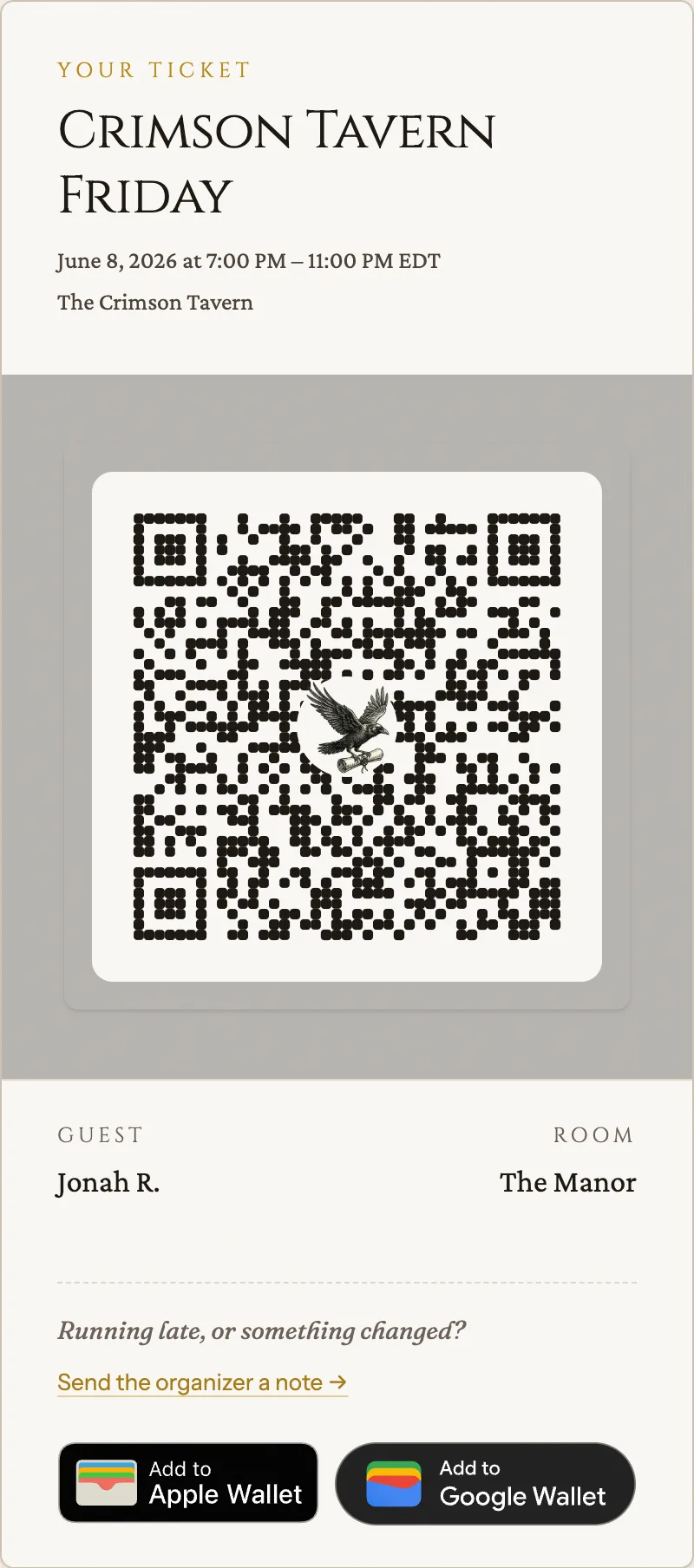
Your ticket is the QR code the door scans to check you in. You get one the moment you're seated at a table, not while you're still on the waitlist.
Here's how to find it, save it to your phone, and let the organizer know if your plans change.
Get seated first
A ticket only exists once you've been assigned a seat. If you signed up for Crimson Tavern Friday and both rooms were full, you start on the waitlist, and your ticket page shows a placeholder where the QR will go (no scannable code yet).
When a spot opens and the organizer seats you, Slaydate issues your ticket token and you get an acceptance email. That's your cue.
Open your ticket
Two ways in. Tap the link in your acceptance email, or open the event page while signed in and go to your ticket from there.
The page shows the event title, date and location, the guest name, your room (for Crimson Tavern Friday that's The Manor or The Cellar), and a big QR code in the middle.
Be signed in as yourself
The QR won't load for just anyone holding the link. You have to be signed in as the person the ticket belongs to.
So a forwarded email or a screenshot of the URL won't open a working ticket for a stranger. (The event organizer can also view it, for support.) If you land on the page signed out, Slaydate sends you to sign in first.
Add it to Apple Wallet or Google Wallet
Below your ticket you'll see Add to Apple Wallet and Add to Google Wallet buttons. Tap the one for your phone and the pass drops straight into your wallet, QR and all.
Then you don't even need to open Slaydate at the door. Pull up the pass and let them scan it. (If a wallet button isn't showing, that organizer just hasn't turned that wallet on. The on-screen QR still works fine.)
Running late or something changed
Right on the ticket there's a "Running late, or something changed? Send the organizer a note" link. Use it to tell Marguerite you're stuck in traffic, leaving early, or can't make it after all.
The note lands with the organizer so they can hold your seat or open it up for someone on the waitlist. Quick heads-up beats a no-show.
At the door
Show the QR. The organizer scans it and you're checked in. Once you're in, your ticket flips to a "Checked In" badge with the time.
Have the screen ready before you reach the front of the line. Brightness up if the room's dim.
That's the whole thing. Get seated, open the ticket, save it to your wallet, and show the QR when you arrive.
If your plans shift, send the note from the ticket page. It's the fastest way to keep your seat or free it up for the next person in line.